
User Tutorial - Publishing your Blocklet to a Store

This tutorial helps new users to publish their newly released Blocklet to their own blocklet store, the arcblock test store and then (once approved) to the Official Arcblock Blocklet Store.
Previous tutorial (on how to first release a blocklet) for reference on how to get to this publish stage:
Now that you have a Blocklet Release, you can either install it or upload it to a store (top right side buttons at the end of this video. This is on mobile. On desktop, you’d also see a “download” option which let’s you download the blocklet code in a zip file):
Let’s press install, to get the meta url for the blocklet. Ideally, you might have a “copy install url” button in blocklet studio, just press that if you do. If not, look at the following video, when you press the install button, you are redirected to the install page. Go to the url for that page and highlight the embedded meta url as shown below:
Now that you have the embedded version, you need to unembed, you can do this with a software like phyton…or for an even faster fix, you can actually use AIGNE Chat Bot to unembed. Just feed/paste the embbeded meta url into AIGNE chat bot, and ask to get the meta url from it, it will send you back the meta url.
Now, let’s look at uploading/publishing our blocklet to a store. On getting developer rights for test store, contact the abt team for an invite link and you can access a faucet to get TBA (like ABT but for testing). Test store below:
https://test.store.blocklet.dev/?locale=en
Once you have a test store developer access, you can upload your blocklets there for testing, adding them by the meta url we previously discussed. The Arcblock team will then test your blocklet.
Alternatively, for setting up your own blocklet store, first go to the official arcblock blocklet store and install/launch “Blocklet Store”:
Now that Blocklet Store is launched and set up, go ahead and issue yourself a developer passport:
Now go to your own Blocklet Store to upload your blocklet. There’s 2 options to upload here, by file, which you can download from “Blocklet Studio” after release, or by “Add” blocklet by CLI. Normally, by “Upload” is an easier process, just press “Upload”, search your computer for the blocklet zip file you downloaded from Blocklet Studio, and that’s it. Your blocklet will upload to the store, all you have to do is press “publish” once the upload is complete.
Now that you have set up your own store and people can access it. The Arcblock team can also test your blocklets from your own Blocklet Store if you provide them with the store address.
Once your blocklet is tested through either of those 2 methods, once it passes the test and the arcblock team deems you a positive contributor to the ecosystem, you will then be provided with an official arcblock blocklet store developer passport for access to the official Arcblock Blocklet Store:
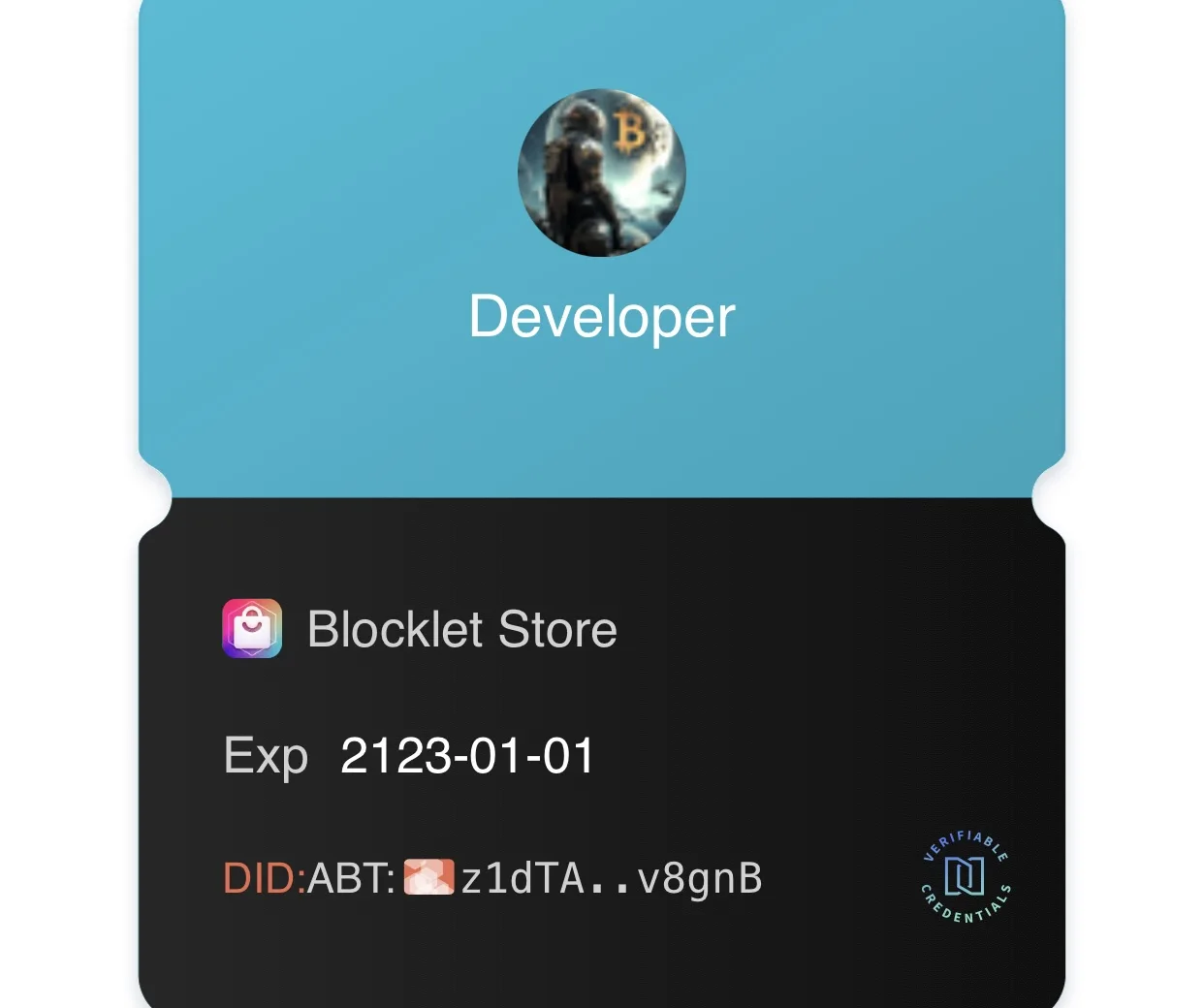
Now that your Blocklet is ready, you can go back to Blocklet Studio, and upload your Blocklet to the Official arcblock store. You press upload, choose the arcblock store, press upload to store (i have the button already pressed in the video, since my blocklet has already been uploaded, but if you freshly upload it will let you press it). Now press visit store. You should see a “publish” button next to your blocklet (again, mine doesn’t show it as it has already been published).
Press the “publish” button, and you are done🎉 After this stage, congratulations, you have officially launched your blocklet to the official store.
1 reply
Just what I was looking for!!