Guide - Cool features in community

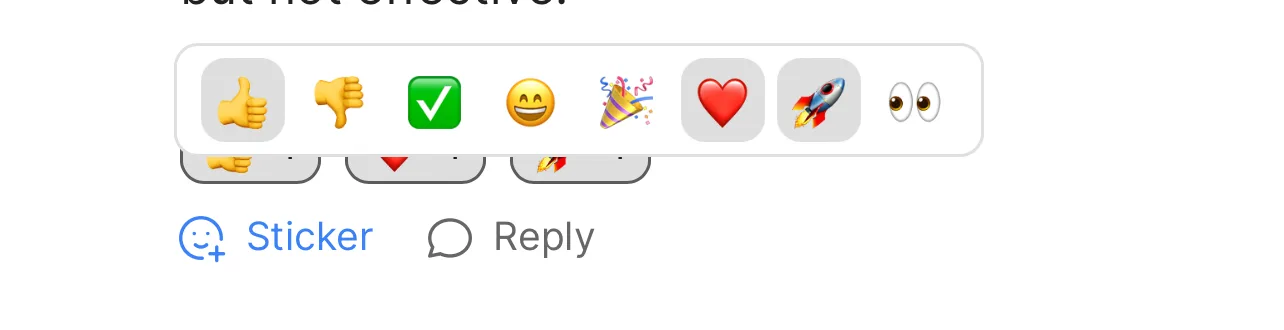
Reactions: You can click to add multiple stickers to a comment meaning you’re not limited to only one reaction!
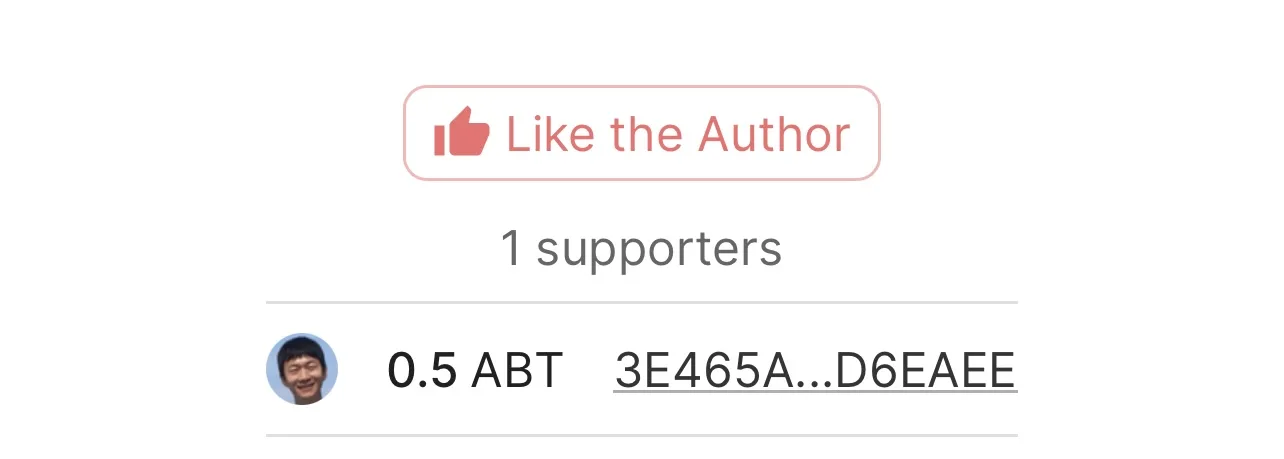
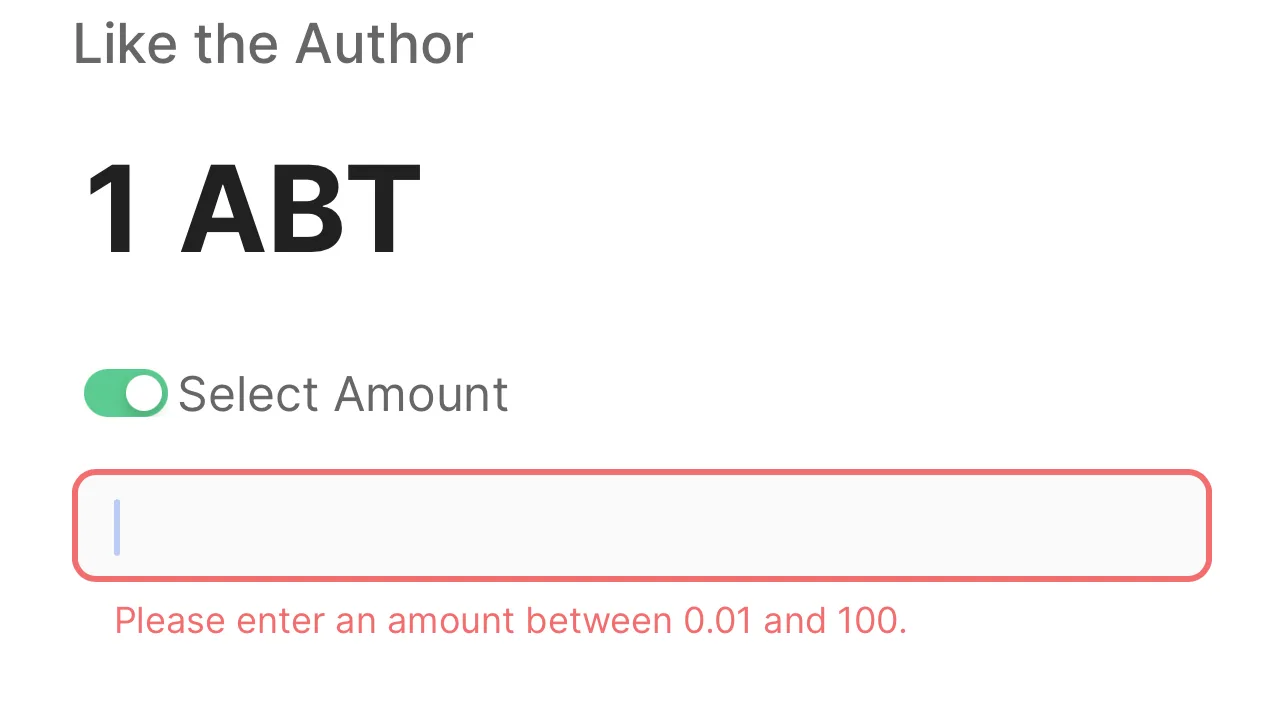
Tips: You can show your support for a community member by tipping, click like the Author and you will be met with some pre set amounts, however you can also tip a custom amount between 0.01 and and 100 ABT by toggling to “custom amount”
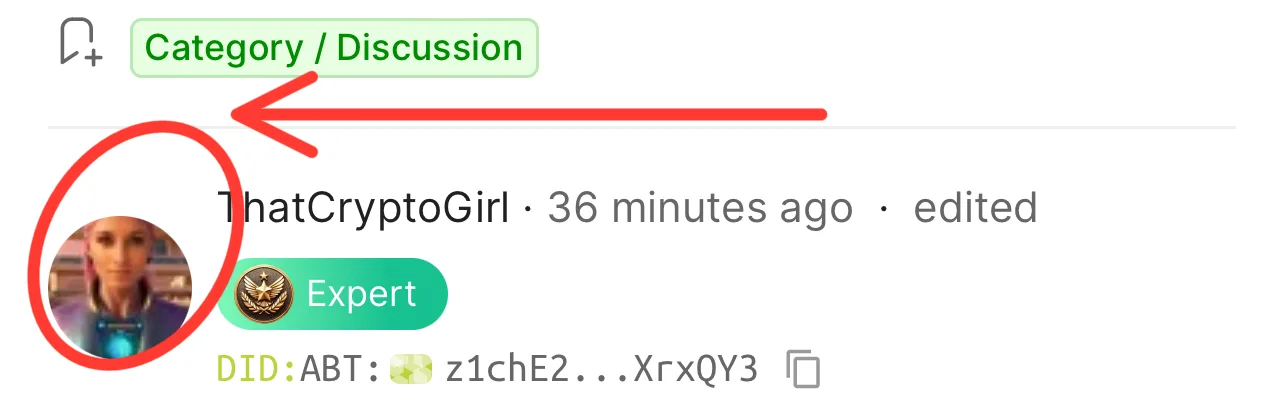
Profile page Links/Follow: You can click on the PFP on any post or comment by a community /Team member and you will be taken to their profile page, from there you have the option to follow the user and connect with them.
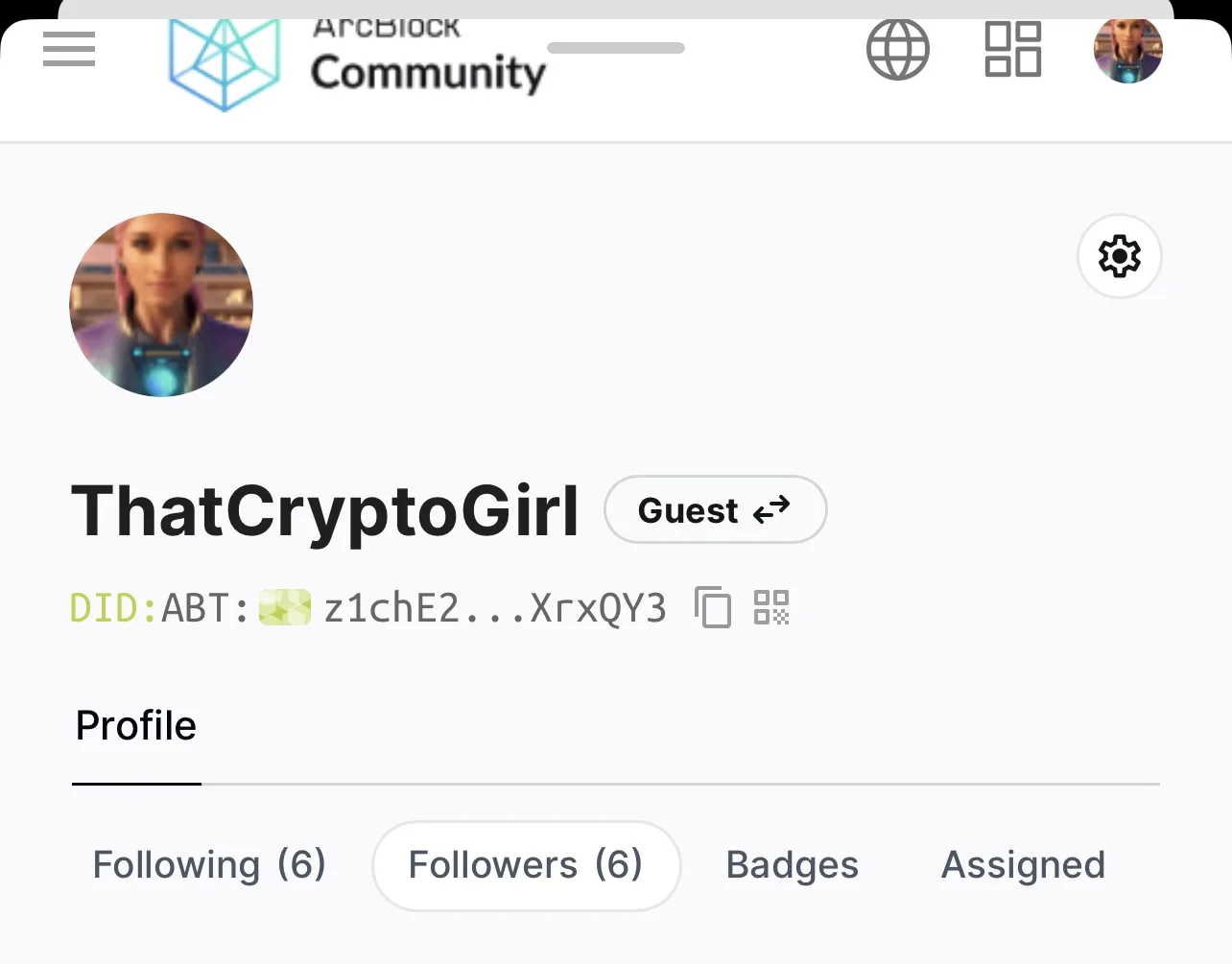
Profile: You can access your own profile using the method above or you can click your own PFP from the top right menu and select “profile”. Here you can see all your feeds, comments and favourites as well as who you follow and who follows you. For Team members there is also an assigned task area where they can see details of posts assigned to them.
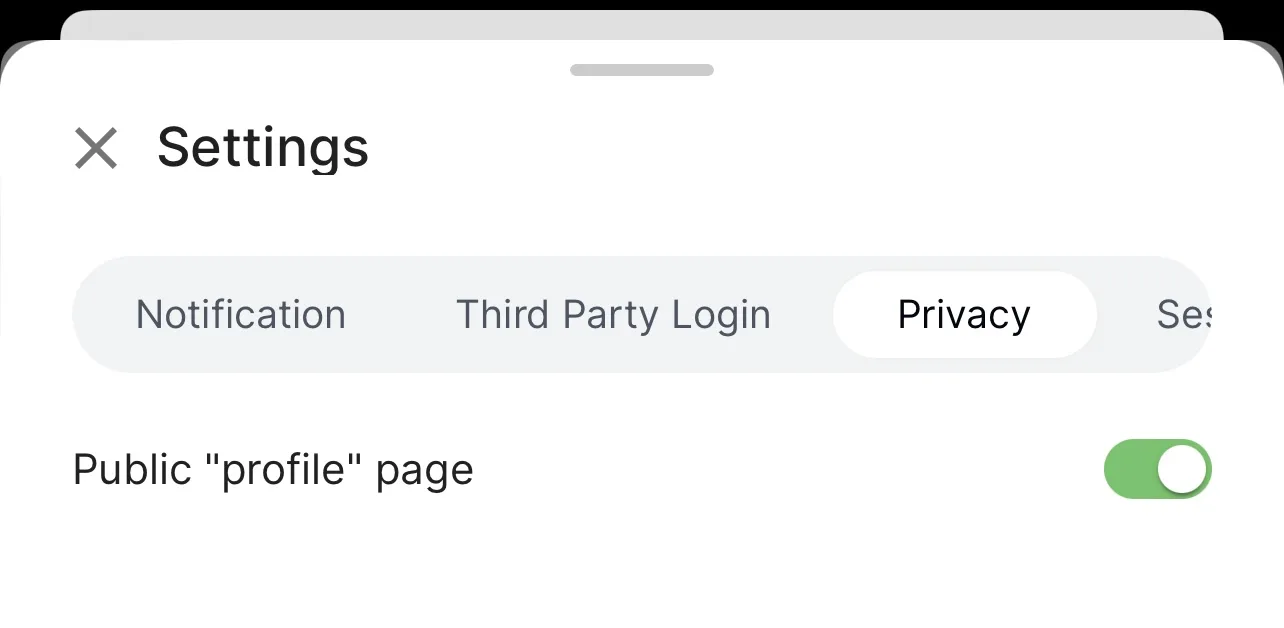
Private Profile: From the settings emblem on your profile you can also choose to make your profile private.
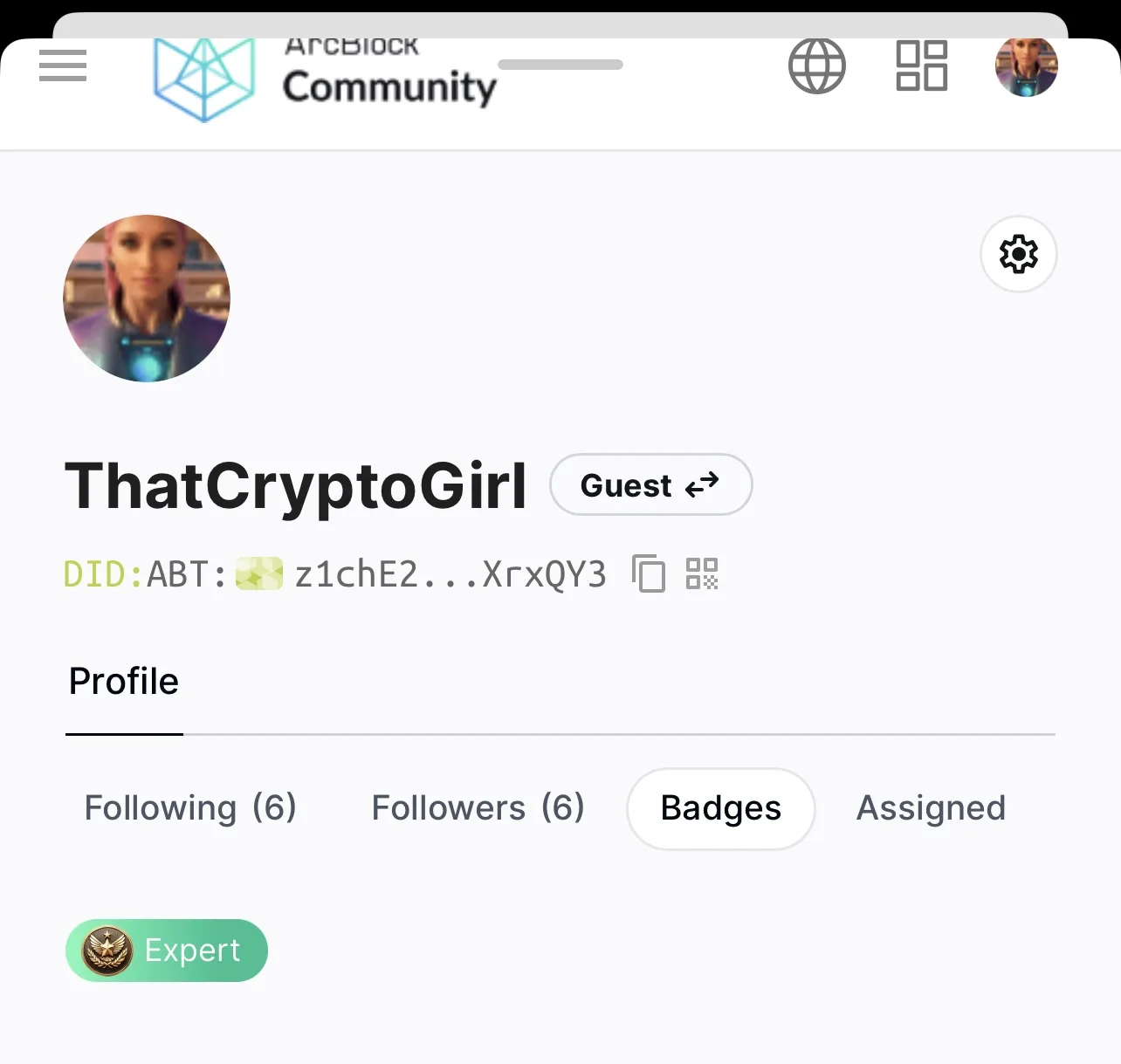
Badges: When accessing your profile you will also see a badges tab. This displays your most recent title in the point rankings, as you progress through the ranks this will change to show your highest achievement.
Ranking structure: You can earn points by posting new suggestions, helpful insights and features on the community page, also by commenting and interacting with others within the community and being an active member, this points system is shown below and earning points for comments and discussions resets every 24 hours (UTC).
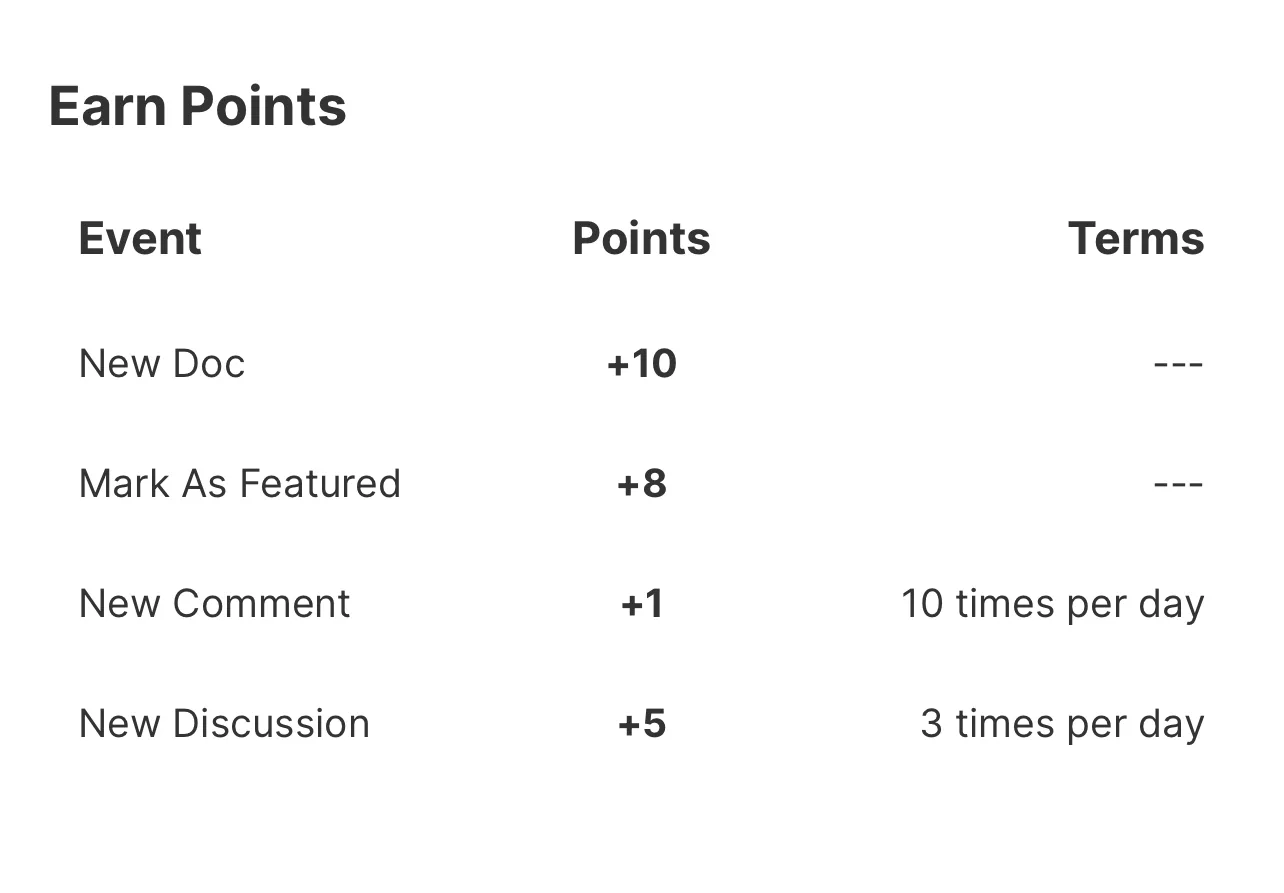
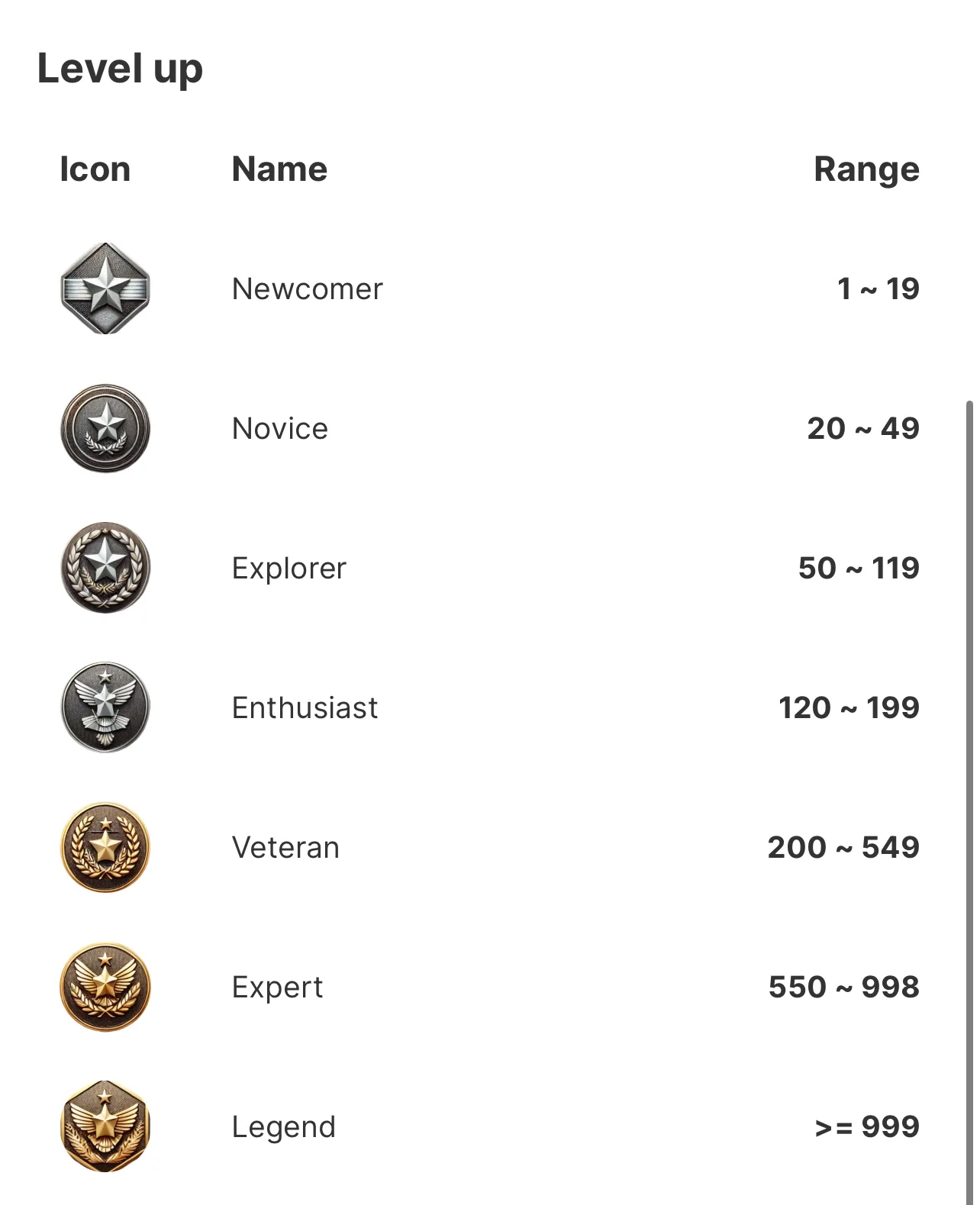
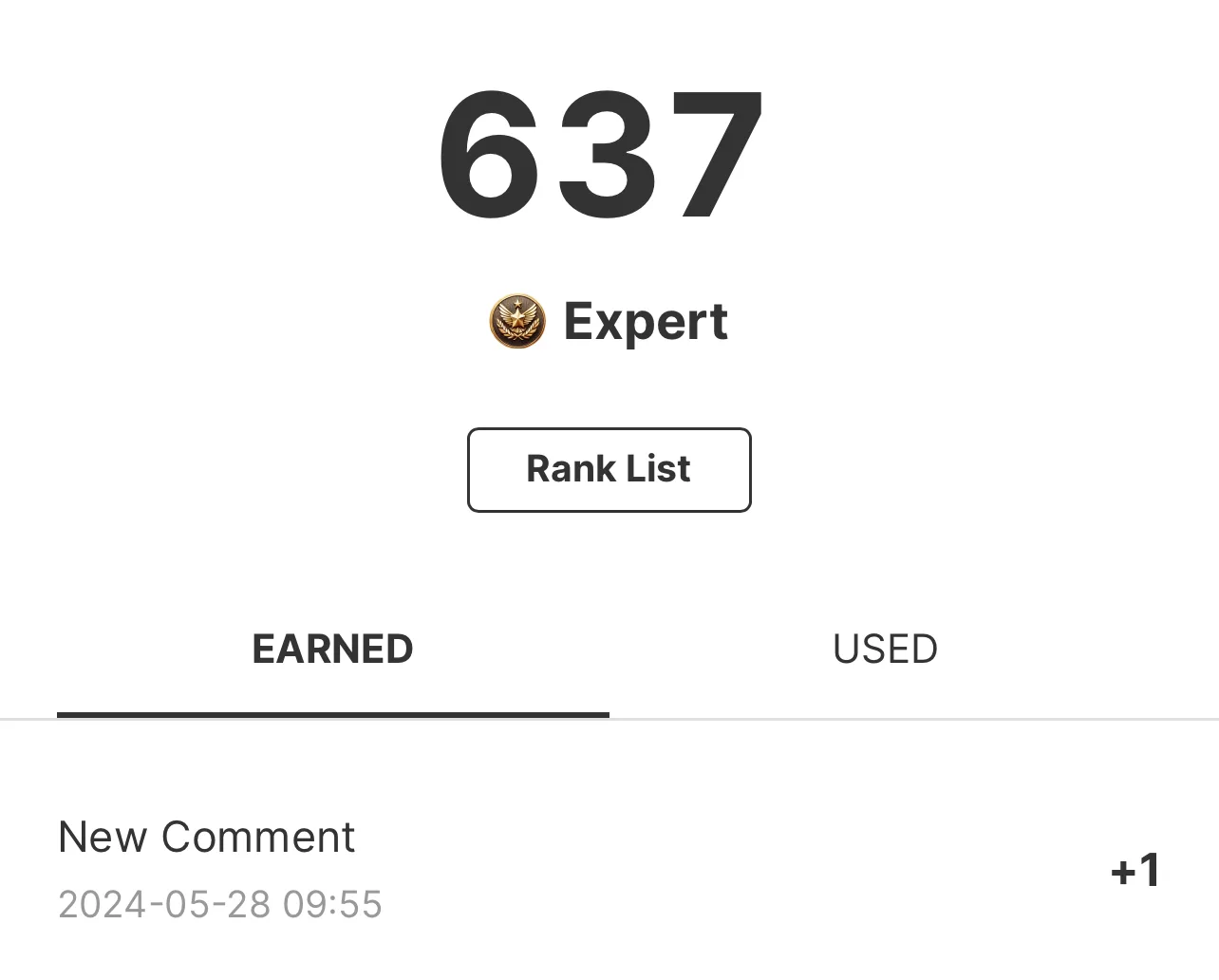
Dedicated Points Area: There is also a dedicated points area accessible by selecting the menu in top left corner of the community home page and clicking “points” this will display your earned points so far and also your current total along with your most recent Badge.
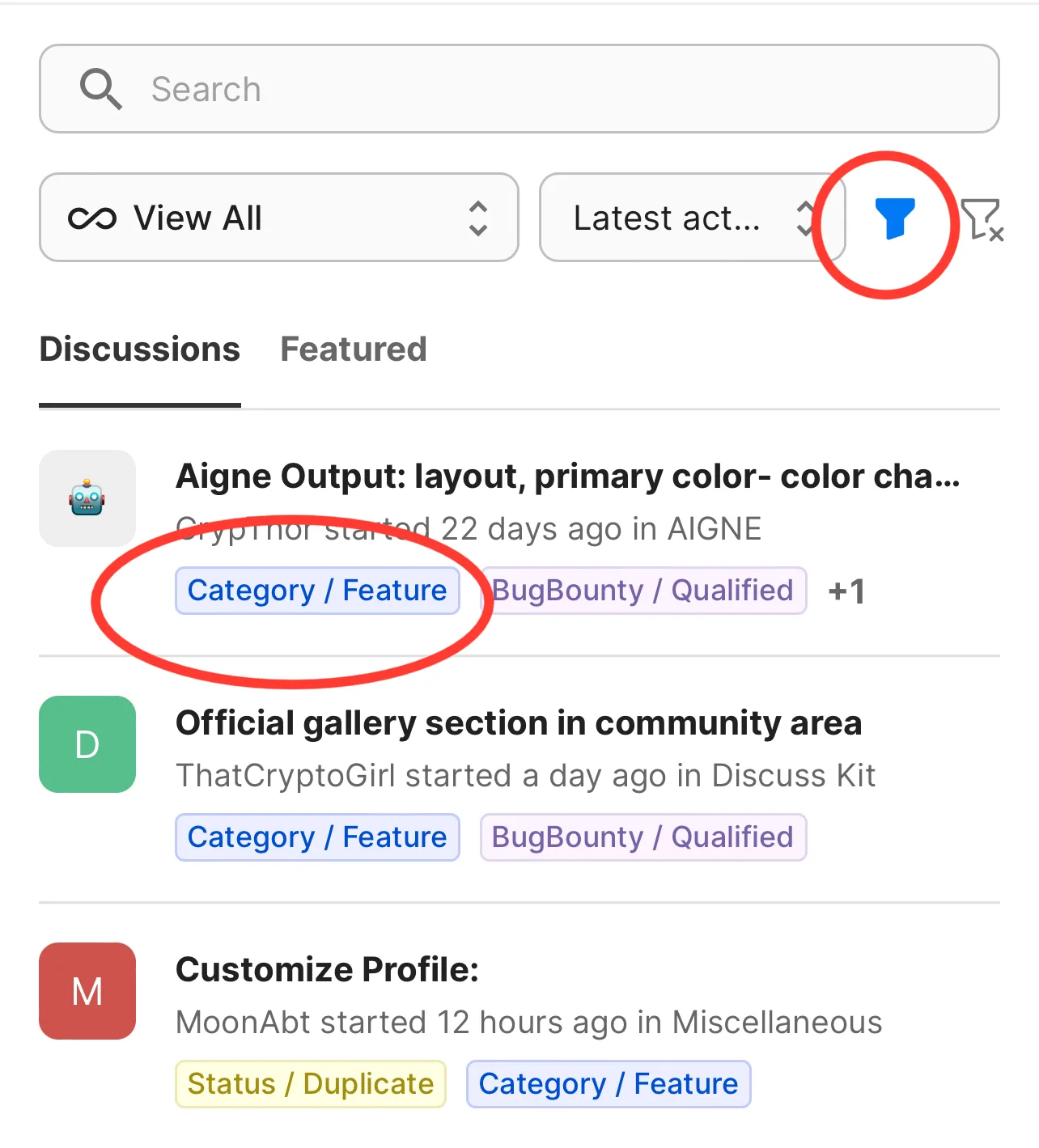
Sorting posts: To view posts from matching categories you can use the filter option on the community page or select the option from the drop down boxes. Alternatively if you click on the highlighted tag underneath a post that will automatically apply the filter showing you similarly tagged posts.
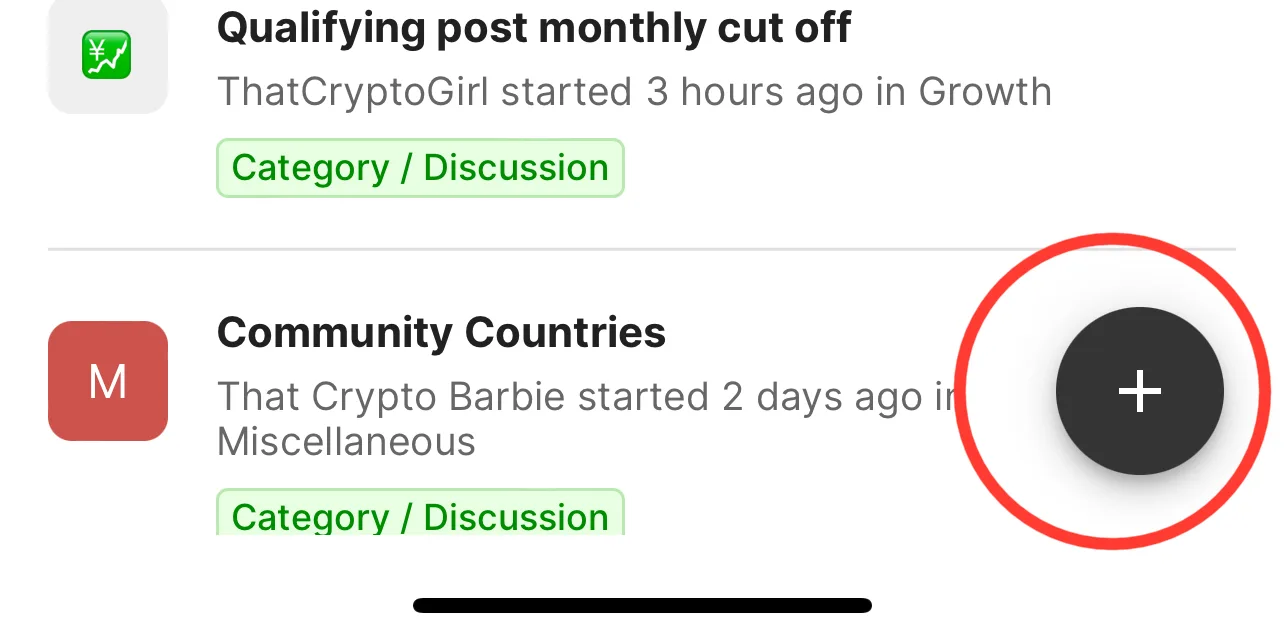
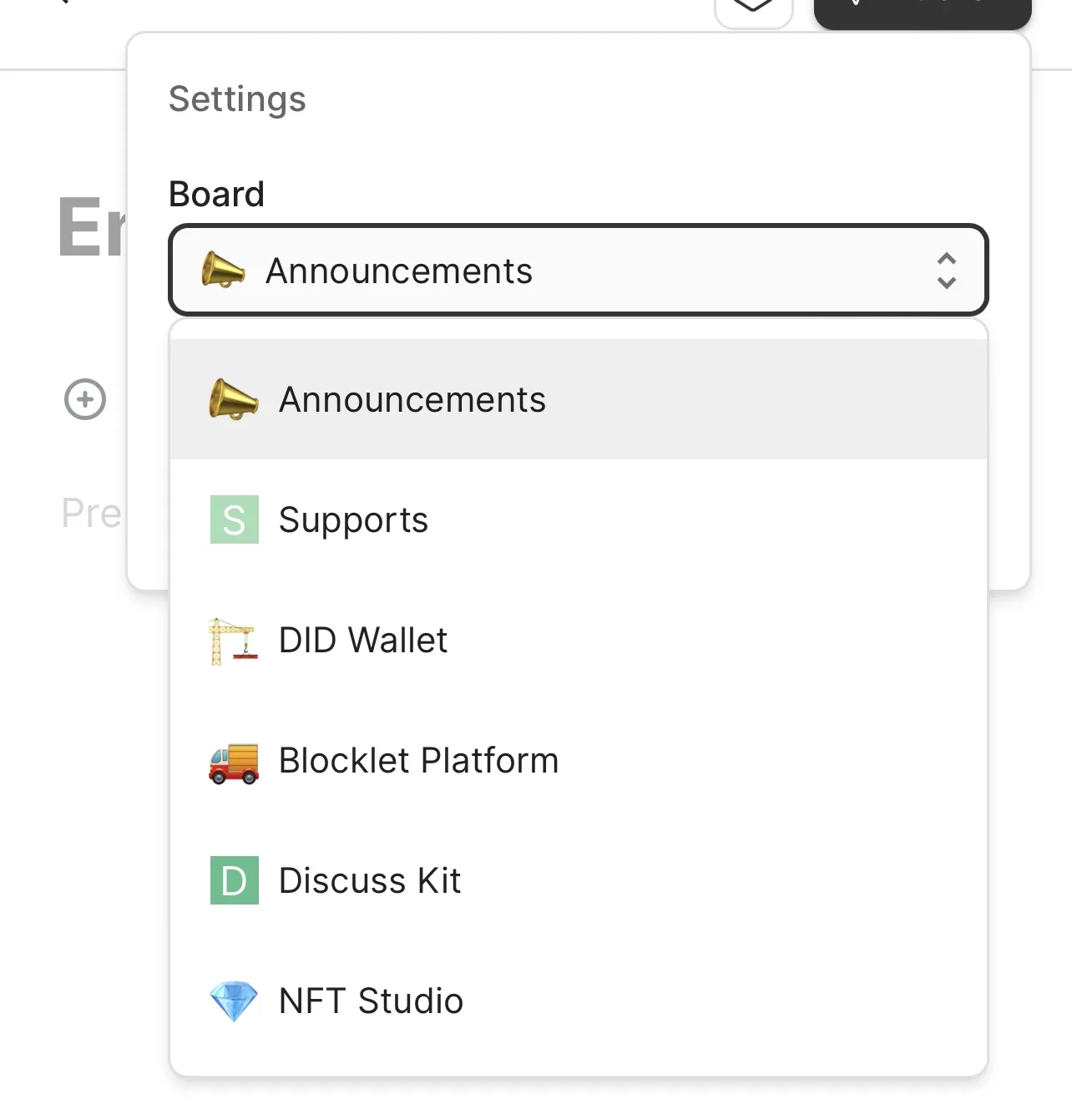
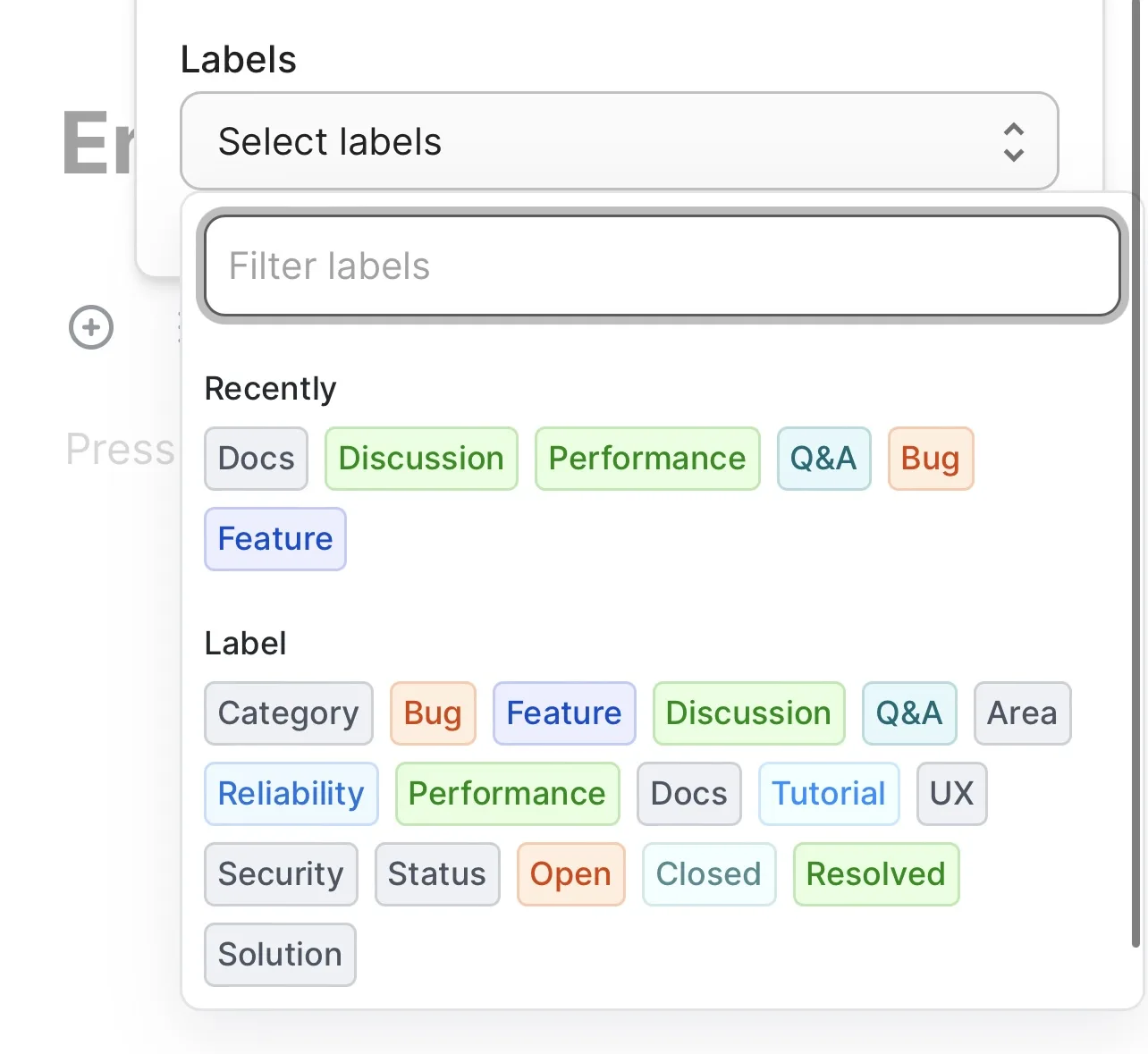
Creating a new post: To create a post select the (+) icon and fill in the sections as required, be sure to add in any supporting images and videos to highlight your point. Before posting select the Bolt style icon and choose the best fitting board and label from the drop down menus.
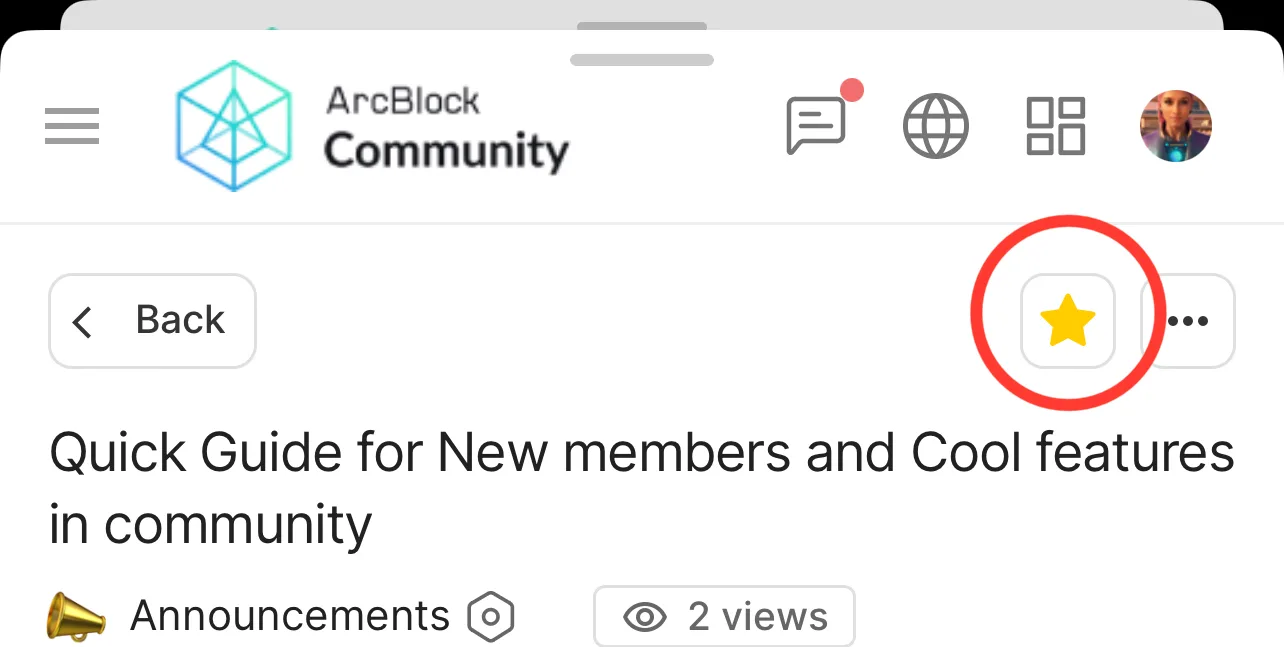
Favourite post: You can favourite a post by selecting the star icon in the top corner of the post you like ⭐️
If you’re new to the ArcBlock community have found this guide useful and want to learn more check out some of the links below as a starting point, they all give good insight into reward pools and points, posting rules/guidelines and avoiding duplicate posts:
4 replies
Thanks for the content, 👍
Each feature with a simple screenshot may make the content much easier to understand.
I did add in screenshots, for some reason they are no longer showing 🤷🏻♀️ I’ll edit shortly and add them back in 😅
Should be fixed again now with screenshots 👍 z1VV21NqNWkiadznN32ALkos5dQqQwnCMty
A bonus tip for new users you can also use the @ symbol to tag community members in posts you think they will like or want to draw their attention to!
👍 good read